> ## Documentation Index
> Fetch the complete documentation index at: https://docs.identity.hackclub.com/llms.txt
> Use this file to discover all available pages before exploring further.
# Quickstart
> Get your YSWS's submissions secured & trusted easily with Hack Club's Submit.
## Get started in three steps
### Step 1: Airtable
Create the following fields on your `YSWS Project Submission` table.
Add a new automation on **record creation** that runs this script:
```js Handle Identity expandable icon="file-spreadsheet" theme={null}
const recordId = input.config().recordID.trim();
let table = base.getTable("YSWS Project Submission");
const queryResult = await table.selectRecordAsync(recordId);
if (queryResult == null) {
throw new Error(`Record with ID "${recordId}" not found in table "YSWS Project Submission"`);
}
const data = {
first_name: queryResult.getCellValue("First Name"),
last_name: queryResult.getCellValue("Last Name"),
idv_rec: queryResult.getCellValue("idv_rec"),
email: queryResult.getCellValue("Email")
};
const searchParams = new URLSearchParams(data).toString();
const requestUrl = "https://submit.hackclub.com/api/verify?" + searchParams;
const response = await fetch(requestUrl).then(res => res.json());
table.updateRecordAsync(recordId, {
"idv_verified": response.verified
});
```
You must set the input variable `recordId` to record ID in the left sidebar!
### Step 2: Fillout
Go to [this Fillout folder](https://build.fillout.com/home/286943-!ysws-start-here!), duplicate the form there, and copy to your workspace.
Add any customized fields, like Hackatime, and then begin to link all fields to your Airtable.
1. Go to the `Integrate` tab
2. Select `Airtable`
3. If not already linked, add your Airtable account as a base limited integration - don't make a workspace wide integration!
4. Select your base & table (YSWS Project Submission)
5. Click Finish Setup
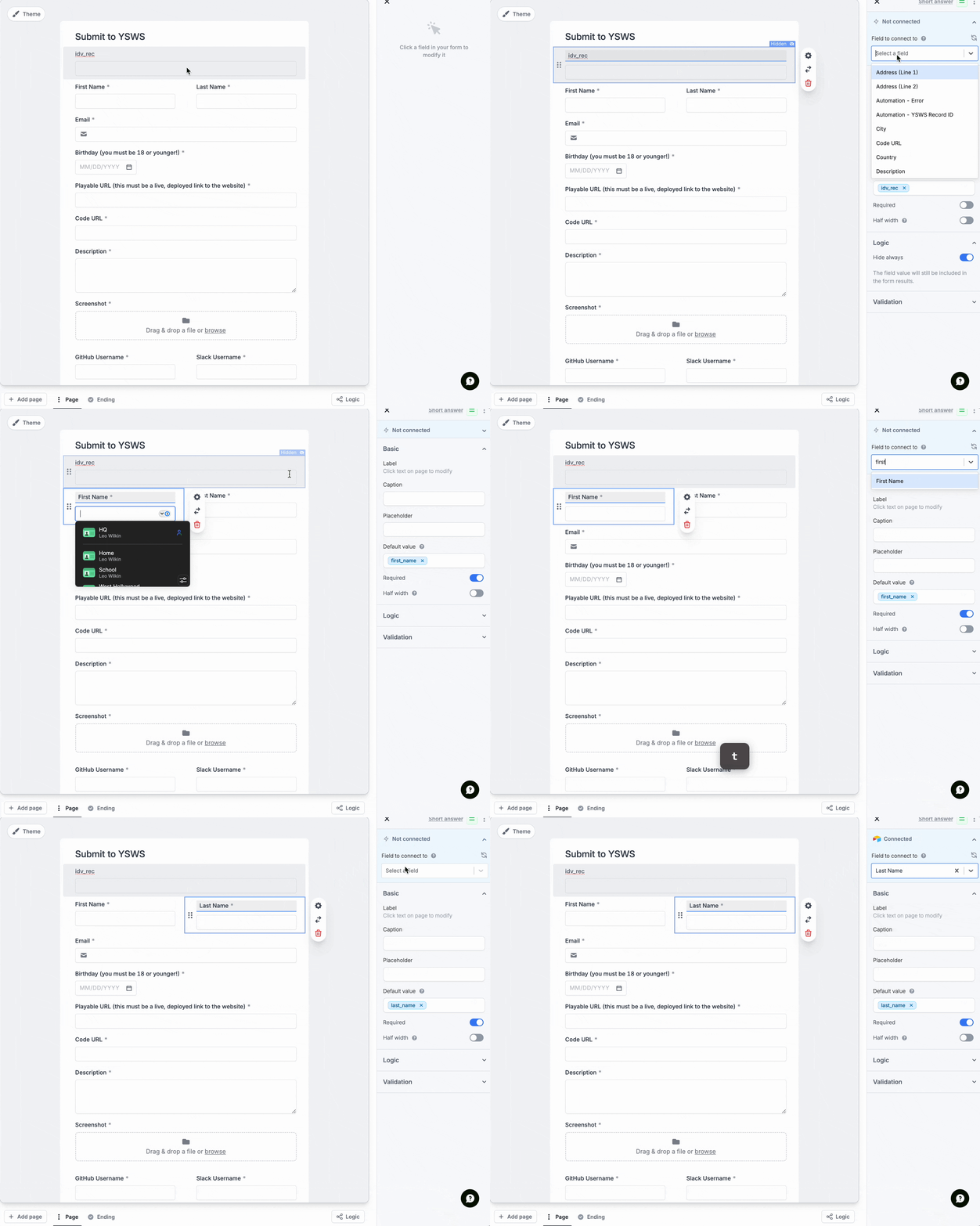 Save your form, and copy the form URL for the next step.
### Step 3: Submit
1. Go to [submit.hackclub.com/admin/programs](https://submit.hackclub.com/admin/programs) and create a new program.
2. Add your form URL to the program configuration, as well as the name & description.
3. Select the identity scopes you need, and only the ones you need - First name, Last name, and Email.
4. Leave Form mappings blank.
Explore more configuration options in the Settings page
Update your YSWS website to use your Submit link instead of your form link. The format is `https://submit.hackclub.com/yourprogramslug`, where `yourprogramslug` is the slug you set when creating the program.
## Next steps
Now that you have Submit up & running, explore these bonus features:
Make your auth page match your YSWS's brand perfectly.
Read more about custom implementations of the API.
**Need help?** Ask in [#submit-help](https://hackclub.slack.com/archives/C09B1B4DZ41)
Save your form, and copy the form URL for the next step.
### Step 3: Submit
1. Go to [submit.hackclub.com/admin/programs](https://submit.hackclub.com/admin/programs) and create a new program.
2. Add your form URL to the program configuration, as well as the name & description.
3. Select the identity scopes you need, and only the ones you need - First name, Last name, and Email.
4. Leave Form mappings blank.
Explore more configuration options in the Settings page
Update your YSWS website to use your Submit link instead of your form link. The format is `https://submit.hackclub.com/yourprogramslug`, where `yourprogramslug` is the slug you set when creating the program.
## Next steps
Now that you have Submit up & running, explore these bonus features:
Make your auth page match your YSWS's brand perfectly.
Read more about custom implementations of the API.
**Need help?** Ask in [#submit-help](https://hackclub.slack.com/archives/C09B1B4DZ41)